
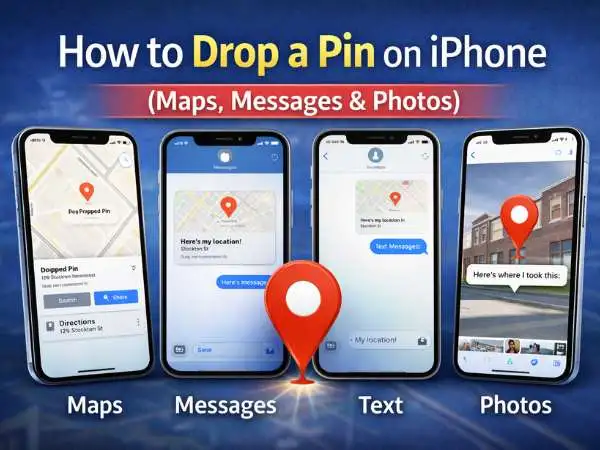
If you’re asking how do you drop a pin on iPhone, the short answer is simple:
Open Apple Maps, press and hold on a location, and a pin appears. From there, you can share it through Messages or any app.
But that’s only part of it.
You can drop a pin in Apple Maps, send your exact location in iMessage, share a pinned spot through text, and even enable location sharing inside Photos. I’ve tested all of this across iOS versions and messaging apps. Some methods are obvious. Others are hidden.
Let’s walk through everything clearly.
Quick Overview: How to Drop a Pin on iPhone
| Action | Where to Do It | How It Works | Best For |
| Drop pin in Maps | Apple Maps app | Press and hold location | Saving exact place |
| Share pinned location | Maps → Share | Send via Messages | Giving directions |
| Drop pin in iMessage | Messages app | Send current location | Live meetups |
| Share via text | Messages → Info | Send My Location | Quick coordination |
| Enable location in Photos | iOS Settings | Turn on location access | Photo tagging |
| Google Photos (Android) | App Settings | Enable location metadata | Cross-device sharing |
If you only remember one thing: long press on Maps. That’s how you drop a pin.
also read : – The Top 10 File-Sharing Apps You Should Try At Least Once
How Do You Drop a Pin on iPhone Maps?
Apple Maps makes this simple, but many people miss the gesture.
Step-by-Step
- Open Apple Maps.
- Search a place or move the map manually.
- Press and hold on the exact spot.
- A red pin appears.
- Swipe up for more options.
That long press matters. If you just tap, nothing happens.
I use this often when a place doesn’t have a listed address. Parking areas. Open fields. Event locations. It works even where Google listings don’t exist.
Once the pin appears, you can:
- Save to Favorites
- Share via Messages
- Copy coordinates
- Get directions
It’s precise. You control the exact spot.
Why Dropping a Pin Is Better Than Sending an Address
Addresses aren’t always accurate.
Apartment complexes can be confusing. Large parks may have multiple entrances. Event venues often span blocks.
A dropped pin shows the exact location.
When I met a client at an outdoor venue last year, the official address led to the wrong gate. I dropped a pin at the entrance instead. Problem solved.
Precision matters.
How Do You Drop a Pin on iPhone Messages?
This is different from Maps.
Inside Messages, you can send your current location without manually dropping a pin.
Method 1: Send Current Location
- Open Messages.
- Open conversation.
- Tap contact name at top.
- Tap Info.
- Tap Send My Current Location.
Your phone sends a map preview instantly.
This sends a static location snapshot.
Method 2: Share Live Location
Inside the same Info section:
Tap Share My Location.
You can choose:
- One hour
- Until end of day
- Indefinitely
This shares real-time movement.
I use live sharing during travel days. It removes the back-and-forth texting.
also read : – Must-Have Apps For IPhone: Apps That You Should Download On your IPhone
How Do You Drop a Pin on iPhone Text?
If by “text” you mean SMS, the process is nearly identical.
Even if the recipient doesn’t use iMessage, location still sends as a map link.
Steps remain:
Messages → Contact → Info → Send Current Location.
If you want more control, drop a pin in Maps first, then tap Share → Messages.
That gives you a pinned location instead of your current GPS.
Subtle difference. Important difference.
Sharing a Dropped Pin Through Messages
After dropping a pin in Maps:
- Swipe up on the pin.
- Tap Share.
- Select Messages.
- Choose contact.
- Send.
The recipient sees a preview with the pinned location.
They can open it in Apple Maps or Google Maps.
I prefer this when meeting someone somewhere new. It avoids confusion.
How to Enable Location Sharing in Photos (iOS)
Photos can store GPS data automatically.
If it’s disabled, location won’t attach to new pictures.
Enable Location in Photos
- Go to Settings.
- Tap Privacy & Security.
- Tap Location Services.
- Scroll to Photos.
- Choose While Using App.
- Enable Precise Location.
Now photos store map data.
You can view it by:
Opening photo → Swipe up → See map location.
This helps when tracking travel or documenting work visits.
I once needed proof of a site visit. The photo’s map data helped confirm date and location.
also read : – 10 Best YouTube Downloader: Simple Ways to Save Your Favorite Videos
How to Enable Location Sharing in Google Photos (Android)
On Android, Google Photos stores location data based on camera settings.
Enable Location Tagging
- Open Camera app.
- Go to Settings.
- Turn on Location Tags.
Then:
- Open Google Photos.
- Tap profile picture.
- Tap Photo settings.
- Confirm location access enabled.
Now photos will show map view inside Google Photos.
Location metadata works across devices.
Privacy Considerations Before Sharing Location
Location sharing is powerful.
But use it carefully.
Live location gives others real-time movement.
Photo location tags reveal where you live or work.
Before posting photos publicly, check if location data is attached.
On iPhone:
Open photo → Tap Share → Options → Toggle off Location.
I always disable location before posting online.
Better safe.
When Dropping a Pin Doesn’t Work
Sometimes Maps fails to drop a pin.
Common reasons:
- Weak GPS signal
- Location services disabled
- No data connection
Fix:
Settings → Privacy → Location Services → Turn ON.
Then restart Maps.
If GPS drifts slightly, move map manually and drop pin manually instead of relying on current location.
also read : – Network Defense Revolution: Safeguarding Your Digital Frontier
How I Use Pins in Daily Workflow
I run meetings across cities.
Pins save time.
Instead of typing long directions, I drop a pin and send it.
During events, I pin parking spots.
When traveling, I save pinned restaurants.
It’s simple. It works. It avoids confusion.
And honestly, once you use it properly, you’ll stop typing addresses entirely.
Market Trend: Location Sharing Is Now Standard
Apple and Google both built stronger location sharing tools over the past few years.
Live location became mainstream with messaging apps.
Maps apps now sync across devices.
Users expect instant pin sharing.
The feature moved from “nice to have” to basic communication tool.
Final Takeaway
If you’re wondering how do you drop a pin on iPhone:
- Open Maps.
- Press and hold.
- Share the pin.
Inside Messages, use Send Current Location.
For photos, enable location access in settings.
Pins give precision.
Precision avoids confusion.
Try it now. Drop a pin near you and send it to someone. It takes seconds.
also read : – Business Owners: What To Know About cPanel Hosting
FAQ
How do you drop a pin on iPhone Maps?
Open Maps, press and hold on a location. A red pin appears.
How do you drop a pin on iPhone Messages?
Open conversation → Tap contact → Info → Send My Current Location.
Can I share live location?
Yes. Choose Share My Location and select duration.
Why can’t I drop a pin?
Location services may be disabled. Turn them on in Settings.
Does Photos automatically save location?
Only if location access is enabled in Privacy settings.